
Download Coccinella – Open‑Source Jabber Client with Built‑In Whiteboard
Overview
Coccinella is a free, open‑source chat client built on the robust Jabber/XMPP protocol. While it keeps the classic instant‑messaging experience lightweight and secure, its standout feature is a built‑in collaborative whiteboard that lets you sketch, annotate, and share ideas in real time with teammates across the network. Whether you’re a remote developer, a teacher coordinating a virtual classroom, or a hobbyist looking for a simple way to chat while brainstorming, Coccinella blends text‑based conversation with visual collaboration without the need for additional plugins.
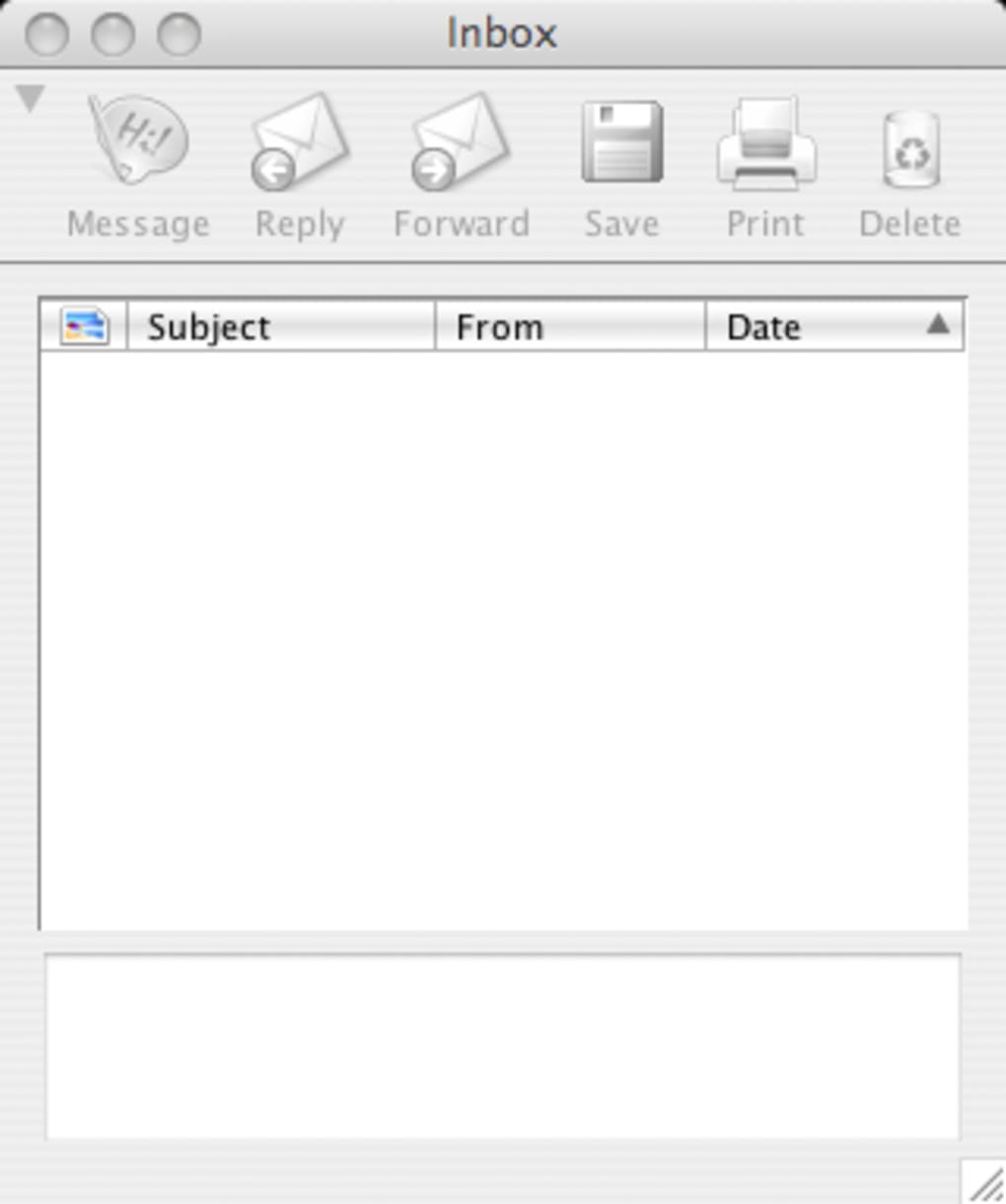
The application follows a clean, uncluttered interface that prioritises readability. Messages are stored in an inbox that can be sorted by subject, sender, or date, making it easy to locate past discussions. Coccinella also supports file transfers, custom avatars, and an extensible emoticon library. Though it does not provide VoIP or webcam support, the client excels at pure messaging and collaborative drawing, offering a stable experience on most modern operating systems.
Because Coccinella connects to any standard Jabber/XMPP server, you can use it with popular services such as Google Talk, ICQ, and even legacy Facebook Messenger accounts that still expose XMPP gateways. The client’s flexibility, combined with its free licensing, makes it an attractive alternative to proprietary IM tools that bundle ads or require subscription fees. While the lack of multi‑account support might be a drawback for power users, the overall performance, low memory footprint, and secure encryption keep Coccinella relevant for both personal and professional environments.
Key Features
- Integrated Whiteboard: Real‑time drawing canvas that can be shared with any number of contacts. Supports shapes, text, and freehand sketching.
- Cross‑Platform Compatibility: Runs on Windows, macOS, Linux, and even Android via community builds.
- Standard XMPP Support: Connects to any Jabber server, including Google Talk, ICQ, and custom corporate XMPP solutions.
- Secure Messaging: TLS encryption ensures that chats and file transfers are protected from eavesdropping.
- Inbox Organization: Messages can be filtered by subject, sender, or date, making archival simple.
- File Transfer Capability: Drag‑and‑drop file sharing with automatic progress indicators.
- Customizable Avatars & Emoticons: Choose from a built‑in collection or import new JISP‑format emoticons.
- Chatroom Access: Join public or private XMPP chatrooms directly from the client.
- Lightweight Design: Low CPU and memory usage, ideal for older hardware.
- Open‑Source License: Fully community‑driven development with regular updates and bug fixes.
These features collectively create a balanced environment where messaging and visual collaboration coexist seamlessly. The whiteboard, in particular, differentiates Coccina from typical instant‑messaging apps, turning a simple chat session into a dynamic brainstorming workshop. Users can invite multiple participants, each seeing live updates as drawings are made, which is perfect for remote design reviews or educational settings.
While the client lacks built‑in voice and video calling, its focus on secure text communication and collaborative drawing ensures that performance remains consistent even on modest network connections. The modular nature of the software also allows developers to contribute plugins or patches, extending functionality over time.
Installation & Usage Instructions
Step‑by‑Step Installation
Downloading and installing Coccinella is straightforward. Follow these steps for Windows, macOS, or Linux:
- Visit the official Coccinella download page and select the installer matching your operating system.
- For Windows, run the
.exefile and follow the wizard. macOS users should open the.dmgand drag the app to the Applications folder. - Linux users can install via the package manager (e.g.,
sudo apt-get install coccinellafor Debian‑based distributions) or compile from source using the providedREADME. - After installation, launch the application. The first‑time startup may show a brief loading screen; this is normal as the client loads configuration files.
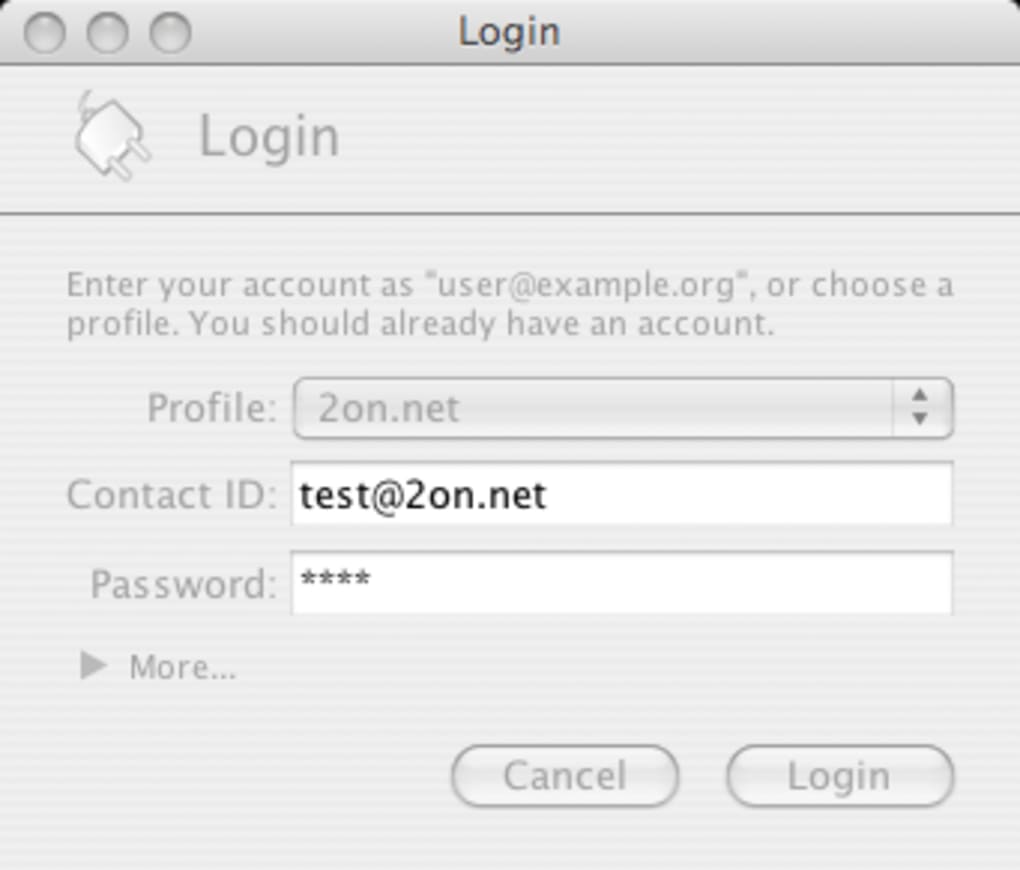
- When prompted, enter your Jabber/XMPP credentials (username, password, and server address). If you’re using a public service like Google Talk, the server field is pre‑filled.
- Save your settings. Coccinella will then attempt to connect. A green status indicator confirms a successful login.
Basic Usage Workflow
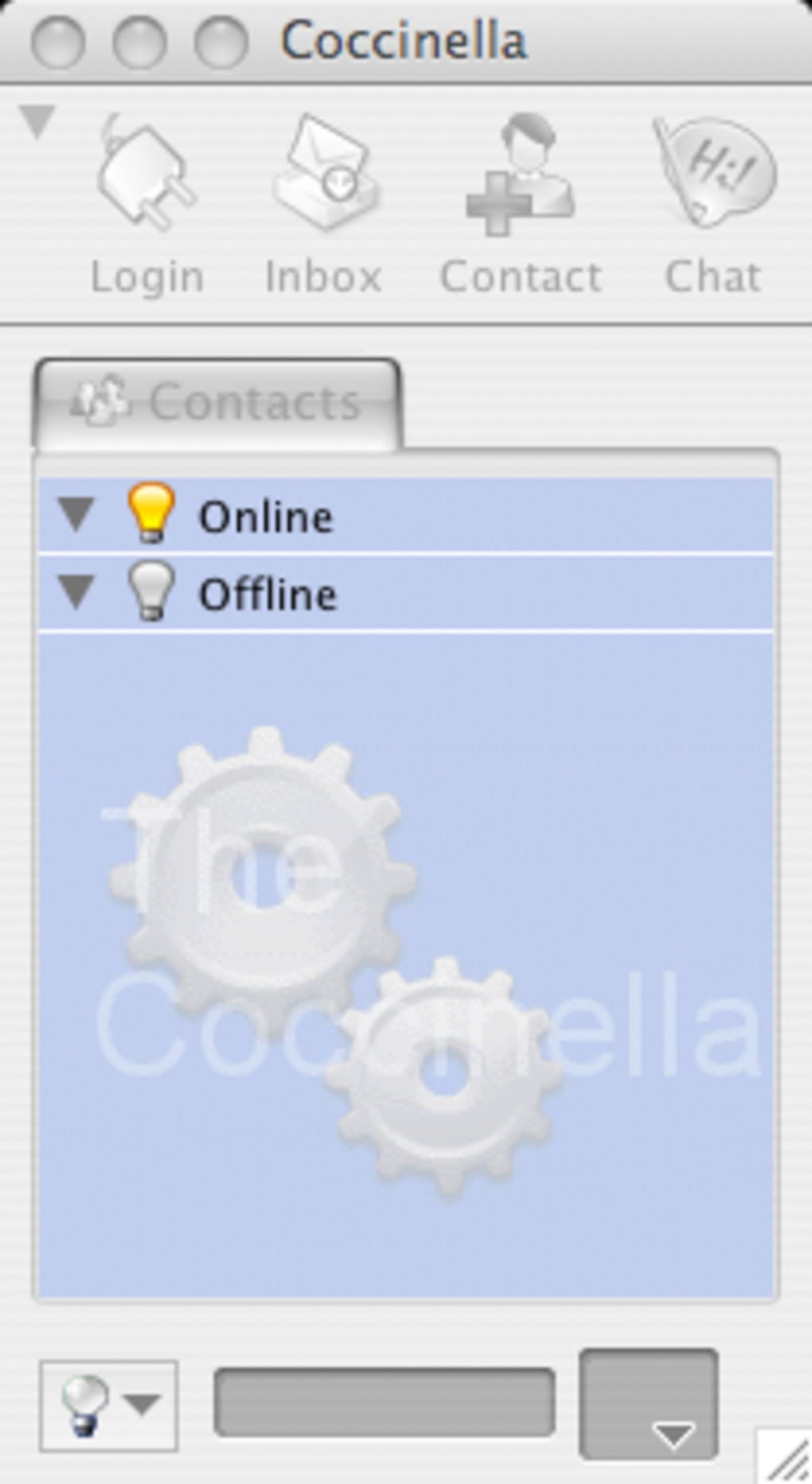
Once connected, the main window displays three primary panes: the contact list on the left, the chat area in the center, and the whiteboard toolbar at the top. To start a conversation, double‑click a contact, type your message, and press Enter. To open the whiteboard, click the “Whiteboard” icon; a new canvas appears that you can share by selecting “Share with Contact” from the context menu.
File transfers are initiated by dragging a file onto the chat window or by using the attachment button. Recipients receive a prompt to accept the transfer, after which the file is saved to the default download folder.
For advanced users, the “Preferences” menu offers options to tweak encryption settings, adjust UI themes, and import custom emoticon packs. Remember to regularly check for updates via the “Help → Check for Updates” menu, which ensures you receive the latest security patches and feature enhancements.
Compatibility, Pros & Cons
Supported Operating Systems: Windows 7 – 10/11, macOS 10.12 or later, major Linux distributions (Ubuntu, Fedora, Debian), and community‑maintained Android builds.
Pros
- Free and open‑source – no hidden fees.
- Robust XMPP support for a wide range of IM services.
- Integrated whiteboard that encourages real‑time collaboration.
- Lightweight and fast, even on older hardware.
- Secure TLS encryption for all communications.
Cons
- No built‑in voice or video calling.
- Cannot manage multiple accounts simultaneously.
- Occasional startup stalls on some low‑end systems.
- Limited official support; relies on community forums.
Overall, Coccinella shines for users who prioritize text chat and visual brainstorming over multimedia calls. Its simplicity makes it ideal for educational environments and small project teams, while power users may miss multi‑account handling.
Frequently Asked Questions
Can Coccinella connect to Google Talk?
Yes. Coccinella supports any XMPP server, including Google Talk’s legacy XMPP gateway. Just enter your Google username and password, and use “talk.google.com” as the server address.
Is the whiteboard feature secure?
The whiteboard data is transmitted over the same TLS‑encrypted XMPP channel used for chat, so it inherits the same level of security as your messages.
Can I import custom emoticons?
Yes. Coccinella accepts emoticons in the JISP format. Place the files in the “emoticons” folder inside the application directory and restart the client.
Does Coccinella run on Android devices?
Community builds are available for Android. They are not part of the official release, but they follow the same feature set and can be installed via an APK.
How do I update Coccinella to the latest version?
Open the client, go to “Help → Check for Updates”. If a newer version is found, the installer will download automatically. You can also download the latest package from the official website.
Conclusion & Call to Action
Coccinella offers a compelling blend of secure instant messaging and collaborative whiteboarding, all wrapped in a lightweight, open‑source package. While it doesn’t provide voice or video calling, its focus on text chat, file sharing, and real‑time sketching makes it an excellent fit for remote teams, educators, and hobbyists who need a reliable, free alternative to commercial IM platforms. The ability to connect to any XMPP server—including popular services like Google Talk and ICQ—ensures broad compatibility, and the regular community‑driven updates keep the software current.
If you’re looking for a secure, no‑cost chat client that also empowers visual collaboration, Coccinella is worth a download. Click the button below to get the latest version for your operating system and start turning conversations into interactive work sessions today.
Coccinella delivers a smooth messaging experience with a standout whiteboard, ideal for collaborative projects. Its open‑source nature and XMPP flexibility are strong points, though the lack of multi‑account support and voice features may limit power users.
- Free, secure, cross‑platform, whiteboard integration.
- No VoIP, single‑account only, occasional startup lag.







